
6 BREEAM Platform
Information correct as of 5thOctober 2026. Please see kb.breeam.com for the latest compliance information.
Amber (orange) traffic light – What does this mean in an assessment? - KBCN1789
An amber (orange) traffic light means this part of the assessment has been edited, and the named Assessor has not yet verified the edits.
20 Apr 2026 - Wording clarified
Assessor organisation users – What are the different roles and permissions in the BREEAM Platform? - KBCN1779
The BREEAM Platform defines multiples roles for Assessor organisation users, each with distinct responsibilities and access levels. It’s possible for a user to have multiple roles.
Roles and permissions for Assessor organisation users include:
- Assessor Organisation Administrator – this role allows users to manage assessor organisation, its assets, assessments, users and permissions.
- User Administrator – this role allows users to manage user permissions for the assessor organisation.
- Assessment Administrator – this role allows users to view, manage and assign all assessments for the assessor organisation.
- Assessment Manager – this role allows users to create assessments and manage assessments assigned to them.
- Assessment Contributor – this role allows users to view assets and edit assessments assigned to them.
- Assessment Stakeholder – this role allows users to view assets and assessments assigned to them. They cannot view assessment evidence.
Can an assessment be created without an asset? - KBCN1784
No. An asset must be created before an assessment can be created.
Can assessors approve or reject changes within the platform? - KBCN1843
Yes, assessors can review and manage changes as part of their oversight responsibilities.
Can asset transfers be reversed or audited? - KBCN1864
All asset transfers are recorded in the platform’s audit trail. Reversals are controlled and may require administrative support, depending on the stage of the transfer.
Can external partners be invited to collaborate? - KBCN1852
Yes, however they will require a user, an organisation, and the relevant roles to be allocated on the platform.
Can I customise my dashboard? - KBCN1860
Yes, users can create a unique dashboard showing the data most relevant to them by selecting the “Create Dashboard” option from the Dashboard dropdown.
Can I export dashboard data? - KBCN1858
This functionality is not yet available but is in our development plan
Can I filter assets by type, status or location? - KBCN1856
Currently, this is not included in the dashboard; however, filters are available on the Asset and Assessment details pages.
Can I see how scores are calculated? - KBCN1847
The methodology for calculations is provided in the relevant Technical Manuals. All technical queries should be submitted using the webform located on BREEAM Projects.
Can I upload or edit asset locations manually? - KBCN1855
The asset upload functionality has not yet been released. An asset’s location is configured by entering its latitude and longitude in the asset details.
Can multiple people work on the same assessment at the same time? - KBCN1850
Yes, the assessment will pick up other users’ edits and update the scores accordingly.
Can the assessor update the ‘certificate release’ field after submission? - KBCN1794
It’s not possible to edit the ‘certificate release’ field if the assessment has been submitted, and is with BRE.
However, the ‘certificate release’ field will become editable again if the assessment is returned to the assessor prior to certification.
Can the certificate be released to the assessor only, initially, and then be issued to the asset owner later? - KBCN1795
Yes. If the assessor has selected ‘assessor only’ in the ‘certificate release’ field, upon certification, the BREEAM Platform will release the certificate to the assessor only.
When the assessor is ready, they will be able to release the certificate to the asset owner through the certificate page of the assessment.
Client organisation users – What are the different roles and permissions in the BREEAM Platform? - KBCN1778
The BREEAM Platform defines multiples roles for Client organisation users, each with distinct responsibilities and access levels. It’s possible for a user to have multiple roles.
Roles and permissions for Client organisation users include:
- Organisation Administrator – this role allows users to manage the organisation, its assets, assessments, users and permissions.
- User Administrator – this role allows users to manage user permissions for the organisation.
- Asset Administrator – this role allows users to view and manage all assets for the organisation. They are also able to assign assets to the appropriate users within the organisation.
- Asset Manager – this role allows users to create and manage assets assigned to them.
- Asset Contributor – this role allows users to edit assets assigned to them.
Green traffic light – What does this mean in an assessment? - KBCN1790
A green traffic light means this part of the assessment has been verified by the Named Assessor.
Grey traffic light – What does this mean in an assessment? - KBCN1788
A grey traffic light means that there have been no edits or actions taken in this part of the assessment.
How are calculations validated against BREEAM standards? - KBCN1848
Calculations are built into the platform and aligned with current BREEAM methodologies to ensure consistency and accuracy.
How can I become an Assessor user? - KBCN1780
To become an Assessor, a delegate must successfully complete an accredited assessor course (
BREEAM training courses | BRE Academy) and obtain a licence.
BRE will then activate Assessor-specific account features, ensuring compliance with the necessary guidelines.
Assessor accounts are managed by BRE.
How can my role be updated in the BREEAM Platform? - KBCN1781
The ’Organisation Administrator’ role within your organisation will be able to make changes to your assigned role and permissions.
For licensed assessors, if you need to make any changes to your licences, please contact the BREEAM Licensing team via the
webform.
How do I assess mixed-use assets? - KBCN1840
Please provide the number of assets, asset types, and their associated NFA and GFA within the Building or Development Details, to define the composition of the commercial asset.
The platform will automatically identify the asset type with the largest NFA, which will be displayed on the certificate. If two or more asset types have equal NFA, the certificate will display “Mixed Use”.
For questions that apply to all asset types, responses should be provided separately for each asset type.
For questions that relate to specific asset types, responses should be completed only for the relevant asset type.
For further guidance, please refer to
GN20.
How do I assign or reassign assessments? - KBCN1851
At the moment, sharing an assessment is only available within the assessor organisation and not across organisations. If you want to share it with a non-assessor user in your organisation, you can invite them to your organisation and then assign them to the assessment. If they are already in your organisation but do not have a valid licence, you will need to follow the same process to grant them access. The user will not have been migrated initially.
How is asset ownership verified during a transfer? - KBCN1865
Asset transfers are controlled actions within the platform and can only be initiated by the named Asset Owner. The process ensures that ownership changes are intentional and traceable.
I am an assessor. How should I create an account on the BREEAM Platform? - KBCN1776
Assessor email credentials have been migrated from BREEAM Projects to the BREEAM Platform.
On first entering the BREEAM Platform, you will be required to verify your email address (this must be the one linked to your licence), and create a password.
To do this:
|
1. Go to the BREEAM platform landing page https://platform.breeam.com and click the “Login” button
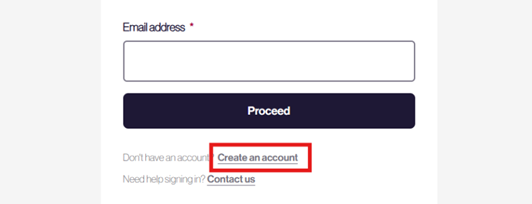
2. On the Welcome back page, click the “Create an account” link (see image below). Do not enter your email address at this stage.
3. You will be taken to the Create an account page. Enter the email address linked to your assessor licence and click “Send verification code”.
4. You will receive a 6-digit verification code in an email from BRE. Enter the code into the “Verification code” box and click “Verify code”.
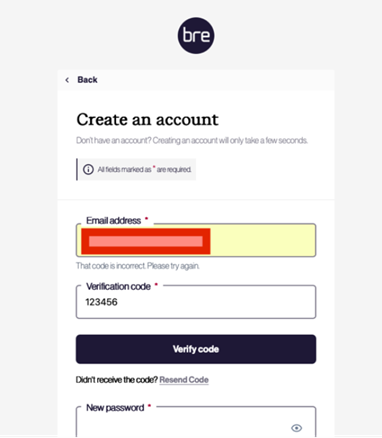
- If the verification code is not recognised, an error message “That code is incorrect. Please try again” will be displayed – check the code and re-enter
- If the code is still not recognised, click on “Resend Code”
5. Enter and confirm your new password for the platform. Your password must be between 12 and 64 characters. Then complete the form with your display name, first name and last name.
6. After reading the Privacy Policy and Terms of Service, tick the confirmation box.
7. Finally, click on “Create” to create your account and add your user details to the BREEAM Platform.
Upon completion, you will enter the BREEAM Platform as an assessor.
|
I am an assessor. What should I do if my email address is incorrect in the BREEAM Platform? - KBCN1777
Assessor accounts are managed by BRE.
If you need to make any changes to your email address, you must contact the BREEAM Licensing Team via the webform to update it.
Assessor email details cannot be changed in the BREEAM platform, and you should not use a different email address as this will not link to your licensed assessor account or enable you to verify your email address.
Is the BREEAM Platform exclusively for Version 7 assessments, or will it also support Version 6 and other versions? - KBCN1917
The BREEAM Platform has been initially launched with Version 7 schemes, starting with New Construction. In the longer term, we aim to incorporate older BREEAM scheme versions into the platform.
Is there a full audit trail of changes? - KBCN1844
Yes, the platform maintains a comprehensive audit trail of user actions and updates.
Is there version control or activity tracking? - KBCN1849
The See History button on each page shows when each question was edited, who made the change, and the assessment status at the time. The history table can be searched and sorted for ease of use.
Is training available for new users? - KBCN1842
Yes, a dedicated training module will be allocated to your BRE Academy account to support onboarding and effective use of the platform. For New Assessors, this will be a key part of your training
Red traffic light – What does this mean in an assessment? - KBCN1791
A red traffic light means that the Named Assessor has reviewed this part of the assessment, and there are outstanding actions that must be addressed.
What are the features being deployed in Release 1.2 (April 2026)? - KBCN1839
An update to the BREEAM Platform is forecast to be released toward the end of April 2026. This will enable assessors to:
- Copy an assessment from an existing assessment, including the associated data
- Create a PCR from a certificated Design Stage assessment
- Copy and paste large data sets from a spreadsheet into the platform data tables
- Create a basic scoring output for an assessment using the new Lite Pre-assessment tool (located on the left navigation menu). This will take into consideration the necessary weightings and be available to both UK and International NC assessments.
What does it mean to transfer an asset? - KBCN1786
Transferring an asset means moving ownership of the asset to another organisation. Please be aware that there can only be one asset owner at any time.
If an asset owner changes, the BREEAM platform allows an asset to be transferred to the new owner.
20 Apr 2026 Wording clarified
What happens if calculation rules change in future updates? - KBCN1846
Updates to calculation rules are managed within the platform. Where relevant, users will be informed, and assessments will be handled in line with version control principles.
What happens if I forget my BRE login details? - KBCN1866
You can reset your login details using the password recovery option on the BRE Platform login page. If you continue to experience issues, support is available to help you regain access by emailing:
BREEAMPlatformDevelopment@bregroup.com
What information is shared with the new owner by default? - KBCN1863
We understand that the ownership of an asset may change. When an asset is transferred within the BREEAM Platform, the new organisation becomes the owner of the asset.
Assessments are not affected by the asset transfer and remain connected to the original owning organisation. However, assessments assigned to the previous owner will remain with the previous owner unless they are transferred to the current asset owner.
Transfers can only be made to the current asset owner.
What information is shown on the dashboard? - KBCN1861
The dashboard shows a generic view created by BRE, including a map with pins indicating the location of previously added assets on the platform, along with two example graphs showing the current status of assessments.
What level of detail is shown on the asset map? - KBCN1857
The location of assets (where longitude and latitude data has been added to the asset details)
Clicking on the asset pin displays the asset name, type and ID. The ID has a link to the asset detail page where the associated assessments are listed.
What types of changes are flagged for assessors? - KBCN1845
Changes made by other users, particularly those impacting scoring or evidence, are highlighted for assessor review.
When an assessment is certified, does the BREEAM Platform release the certificate to the client? - KBCN1793
Not without instruction from the assessor. The BREEAM Platform allows assessors to choose how they would like certificates to be released.
The ‘Certificate release’ field on the ‘Submit assessment’ page asks the assessor to confirm who the BREEAM Platform should make the certificates available to once a successful certificate decision has been made by QA for the assessment. They need to confirm whether certificates should be available to:
or
When creating a new asset, should I select my organisation as the Owner or the Assessor? - KBCN1782
Your organisation name will define the available options as follows:
- If you are not an active licensed assessor, you will only be able to select owner.
- If you are an active licensed assessor, you can select either owner or assessor. You must select assessor to allow you to submit the assessment to BRE.
23-Sep-2026 - Wording further clarified
20-Apr-2026 - Wording clarified
When creating an assessment for an International project, how do I add a region? - KBCN1837
First, create an asset by completing the required details, then create an assessment for that asset.
Open the assessment and go to Assessment Detail from the left-hand navigation. In the top right corner, click Edit to open the assessment details.
In the Assessment Address section, locate the BREEAM Region field, which is the last option. Based on the country already entered in the asset details, select the correct region for your asset.
Once you have updated this, click Save in the top right corner. This will apply the correct regional weightings to your assessment.
Where are traffic light indicators shown in the BREEAM platform? - KBCN1792
Traffic light indicators appear in assessments. They are displayed in the navigation panel on the left against the overall assessment, parts, categories, issues or parts of issues.
Which units and currencies are supported? - KBCN1854
Metric and imperial measurements are available. The following currencies are supported: EUR, USD, GBP, and CNY.
Who can appoint an assessor to an assessment? - KBCN1785
An asset owner can assign an assessment to a licensed assessor, while an organisation administrator within a licensed assessor organisation can allocate or reallocate assessments to licensed assessors within their organisation. If an asset has no owner and was created by an assessor, the assessor can also assign an owner.
20 Apr 2026 - Wording updated
Who can create an asset? - KBCN1783
Users within an organisation who have the appropriate role, including both Client and Assessor users, can create an asset. However, if you create an asset as the owner, you will not be able to submit the assessment, as only a licensed assessor who is assigned to the asset can submit the registration and assessment.
20 Apr 2026 - Wording updated
Who can register a V7 assessment on the BREEAM Platform? - KBCN1787
Assessments can only be registered by a BREEAM assessor who is licensed under the relevant scheme.
23-Sep-2026 - Wording updated
Who is authorised to transfer an asset? - KBCN1862
Only Asset Owners can start and complete asset transfers.
Why am I seeing the warning “Weightings have not been set for this country or region” in the scoring output, and how can I fix it? - KBCN1838
Go to Assessment Detail from the left-hand navigation. In the top right corner, click Edit to open the assessment details.
In the Assessment Address section, locate the BREEAM Region field, which is the last option. Based on the country already entered in the asset details, select the correct region for your asset.
Once you have updated this, click Save in the top right corner. This will apply the correct regional weightings to your assessment.
Will changing units affect existing assessments? - KBCN1853
No, changing which units are displayed to the user does not affect the units entered in the assessment.
Will existing projects be migrated into the platform? - KBCN1841
Migration of existing projects is planned, with further details provided to users as part of the rollout.
Will users with different roles see different dashboard views? - KBCN1859
This depends on the roles associated with the dashboard when it is created.
Information correct as of 5thOctober 2026. Please see kb.breeam.com for the latest compliance information.